
Selling Formulas: How to Protect Your Profit and Never Sell at a Loss
July 16, 2026 · 6 min read
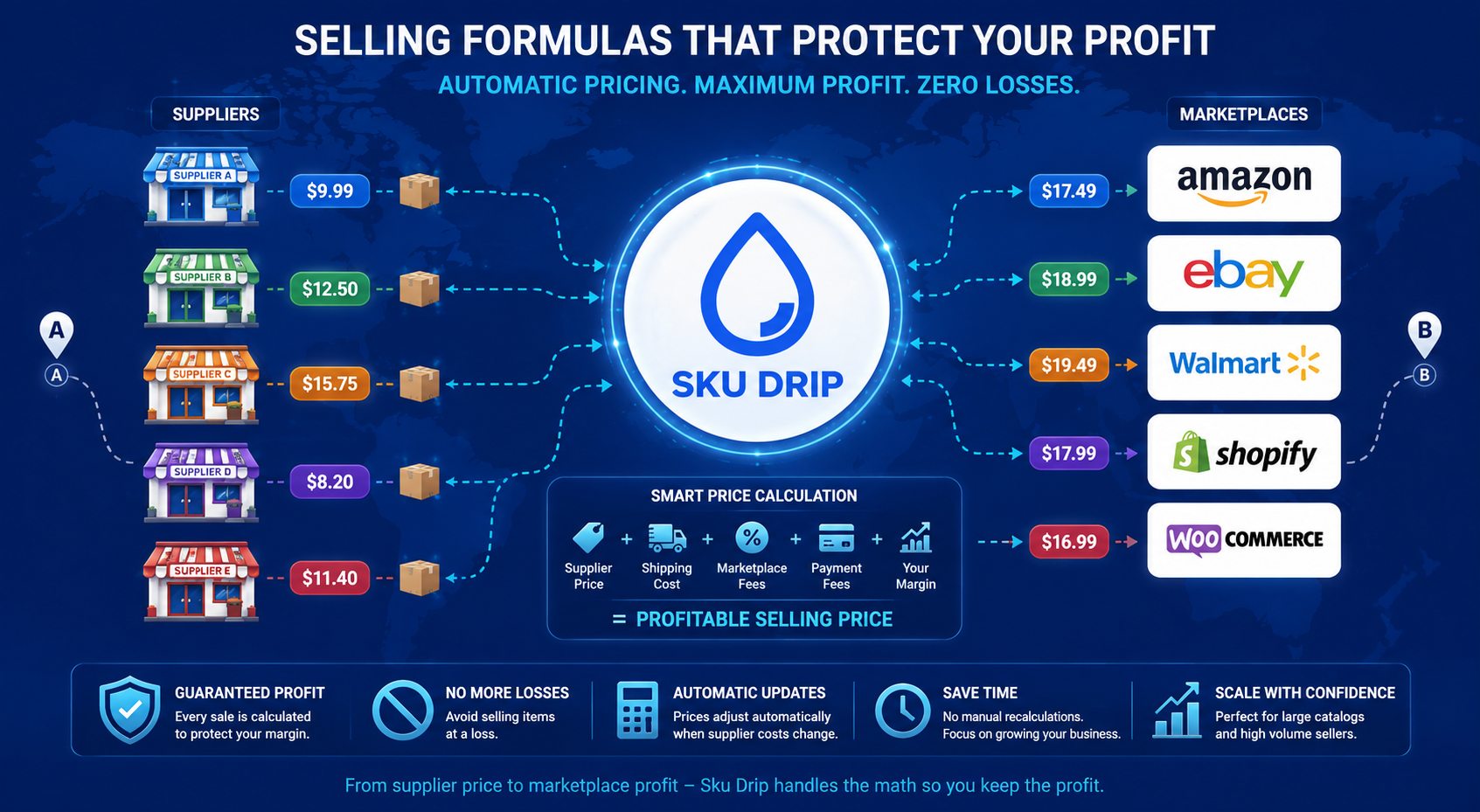
One of the biggest challenges in sales is maintaining profitability when supplier prices, shipping costs, and marketplace fees constantly change.
A product that is profitable today can quickly become unprofitable if the supplier increases the price or shipping cost.
This is why having a properly configured Selling Formula is one of the most important parts of your SKU DRIP setup.
A selling formula automatically calculates the final marketplace price of your products based on supplier costs, shipping fees, marketplace fees, payment fees, and your desired profit margin.
When configured correctly, your products will always be priced to protect your profit and prevent accidental losses.
Why Selling Formulas Are Important
Many sellers manually set product prices and forget that supplier costs can change at any time.
Without an automated pricing formula, you may face:
- Unexpected losses after supplier price changes
- Incorrect profit calculations
- Manual price adjustments across hundreds or thousands of listings
- Difficulty scaling your business
SKU DRIP solves this problem by automatically recalculating your selling price according to your formula whenever supplier data changes.
Creating a Selling Formula in SKU DRIP
To create a new selling formula, go to:
Click Add Formula and configure the required settings.
The formula settings allow you to define how SKU DRIP should calculate the final marketplace price using supplier costs and your business requirements.
Formula Settings Overview
When creating a selling formula, you can configure the following options:
Vendor Tax
Allows you to include supplier taxes in your product cost calculation.
Margin
Defines the percentage of profit you want to add based on the supplier price and shipping cost.
For example, if you want to maintain a 20% profit margin, SKU DRIP will automatically calculate the required selling price.
Fixed Margin
Adds a fixed dollar amount to the final product price.
This can be useful when you want every sale to include an additional fixed profit amount.
Minimum Margin
Protects your business by setting the minimum profit amount you want to earn from each sale.
PayPal Fees
Includes PayPal transaction costs in your pricing calculation.
You can specify both the percentage fee and the fixed transaction fee.
Marketplace Fees
Allows SKU DRIP to include marketplace commissions when calculating your final selling price.
This helps ensure your real profit is calculated after all selling costs.
Include Supplier Shipping
Enable this option if your supplier charges shipping fees that should be included in your product price.
Advanced Option: Manual Override
For advanced users, SKU DRIP provides the Manual Override option.
This allows you to create your own custom pricing formula using variables:
- vendor_price - supplier product price
- vendor_shipping - supplier shipping cost
Custom formulas provide complete flexibility for advanced pricing strategies.
However, if you are not familiar with creating formulas, we recommend using the standard formula fields. They are designed to cover the needs of most sellers.
Detailed information about creating selling formulas can be found in our documentation:
SKU DRIP Documentation – Create Selling Formula
Always Test Your Formula Before Saving
Before applying a selling formula to your listings, it is important to verify that the calculated prices are correct.
SKU DRIP includes the Estimate Final Price tool directly on the formula creation page.
Enter:
- Vendor Price
- Vendor Shipping
Then click the Estimate button.
SKU DRIP will calculate the expected final selling price using your formula. This allows you to confirm your settings before applying them to live listings.
Applying a Selling Formula to Your Marketplace
After creating your formula, you can apply it to your marketplace settings using the Selling Price Formula option.
This is the easiest way to manage pricing across all listings connected to a specific marketplace.
Using Different Formulas for Individual Listings
Some products may require a different pricing strategy.
SKU DRIP allows you to assign a specific selling formula directly to an individual listing.
To apply a formula to a product:
- Open the product in SKU DRIP for editing.
- Select the required formula in the Selling Price Formula option.
- Save your changes.
A formula assigned directly to a listing has higher priority than the formula configured in marketplace settings.
Custom Formulas Directly From the Listings Page
SKU DRIP also allows you to create a custom selling formula directly from your listings page.
Simply in the Profit column, click the icon, and enter your custom formula.
After saving, the formula will immediately be applied to that product.
You can also remove the custom formula from the same window at any time.
Just like listing-level formulas, custom formulas have higher priority than marketplace-level formulas.
Best Practices for Selling Formulas
To get the best results from SKU DRIP pricing automation:
- Always include marketplace fees in your calculations.
- Include supplier shipping costs when necessary.
- Set a minimum profit amount to protect low-priced products.
- Test formulas before applying them to live listings.
- Review your formulas when your business costs change.
Final Thoughts
A properly configured selling formula is one of the most important tools for running a profitable automated store.
Instead of manually checking every product price, SKU DRIP automatically calculates the correct selling price based on your business rules.
By using selling formulas correctly, you can scale your inventory, protect your profit margins, and avoid selling products at a loss.